Appendix: VSCode and Docker Working Together on Windows
First, you need to install Docker and Visual Studio Code and ensure they are functioning properly.
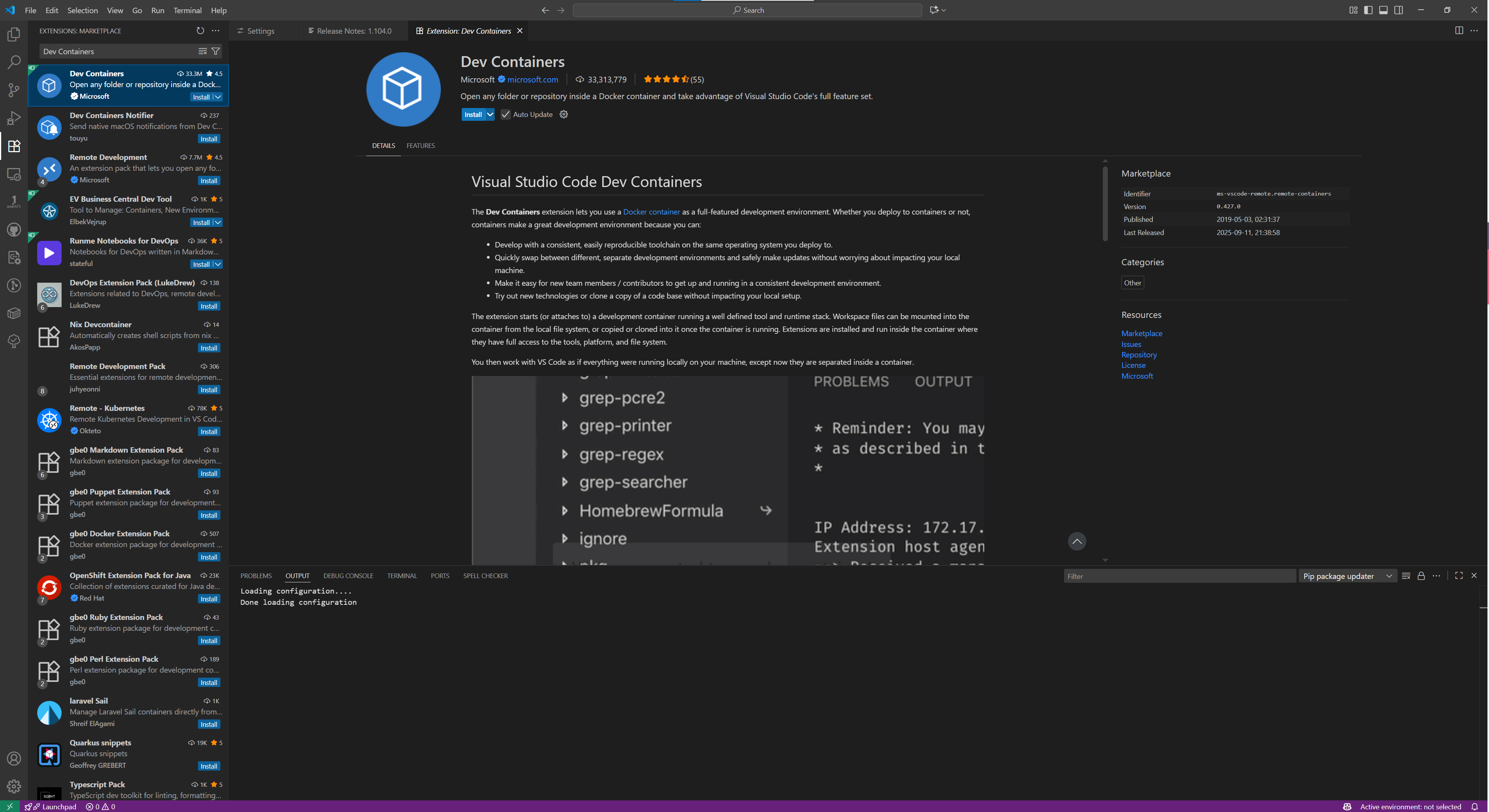
Install the Dev Containers plugin
- Open Visual Studio Code
- click the Extensions icon in the left sidebar
- Search for “Dev Containers” in the search bar at the top of the Extensions list that appears
- select the desired extension from the search results and click the Install button on the opened page
Connecting to a container using VS Code
- Launch the container using the method described earlier (refer to setup)
- Launch VS Code, then click the green “Open a Remote Window” button in the bottom-left corner
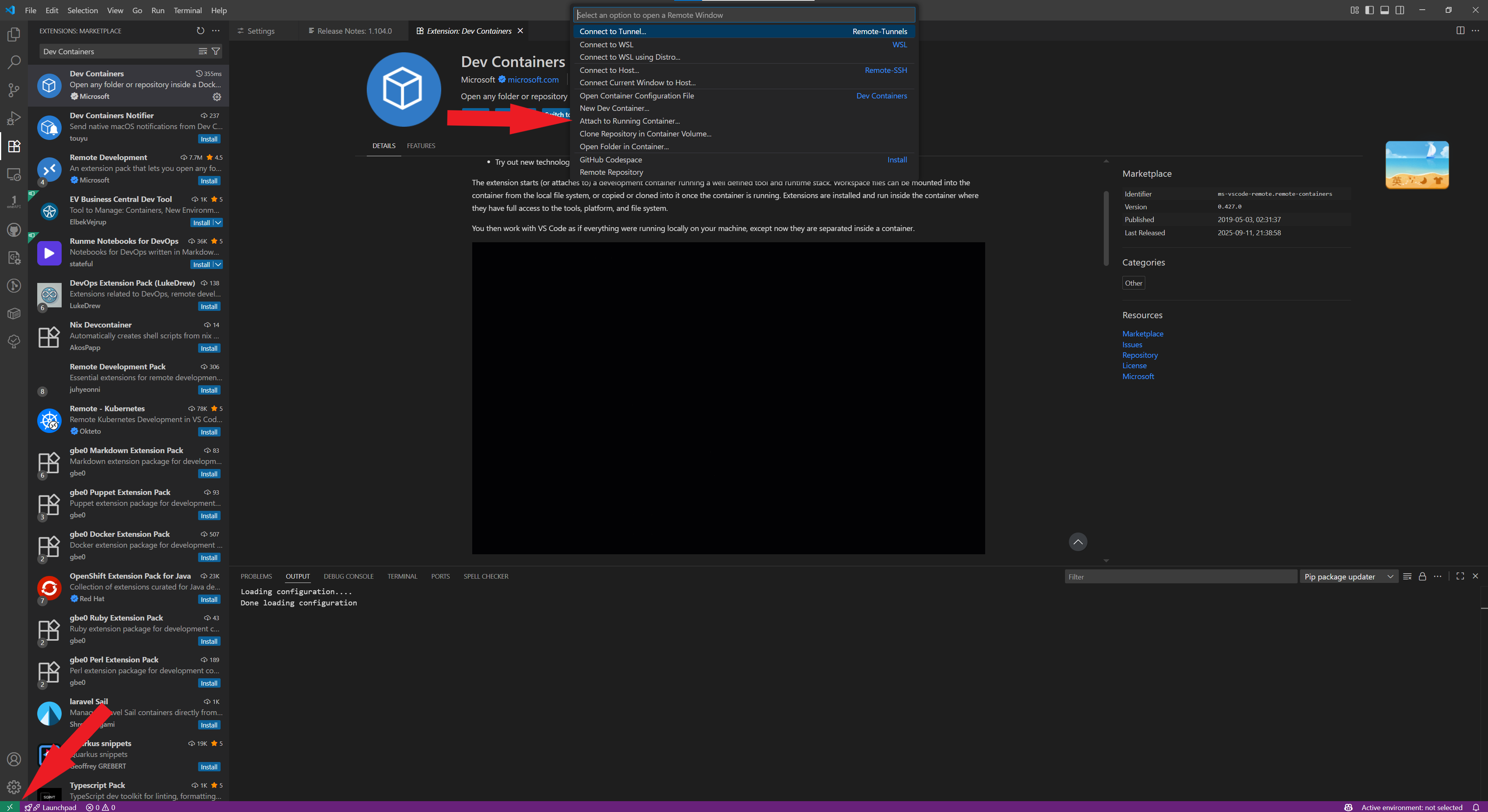
- Then it will display a list of currently running containers at the top. Select the container you want to enter and click on it